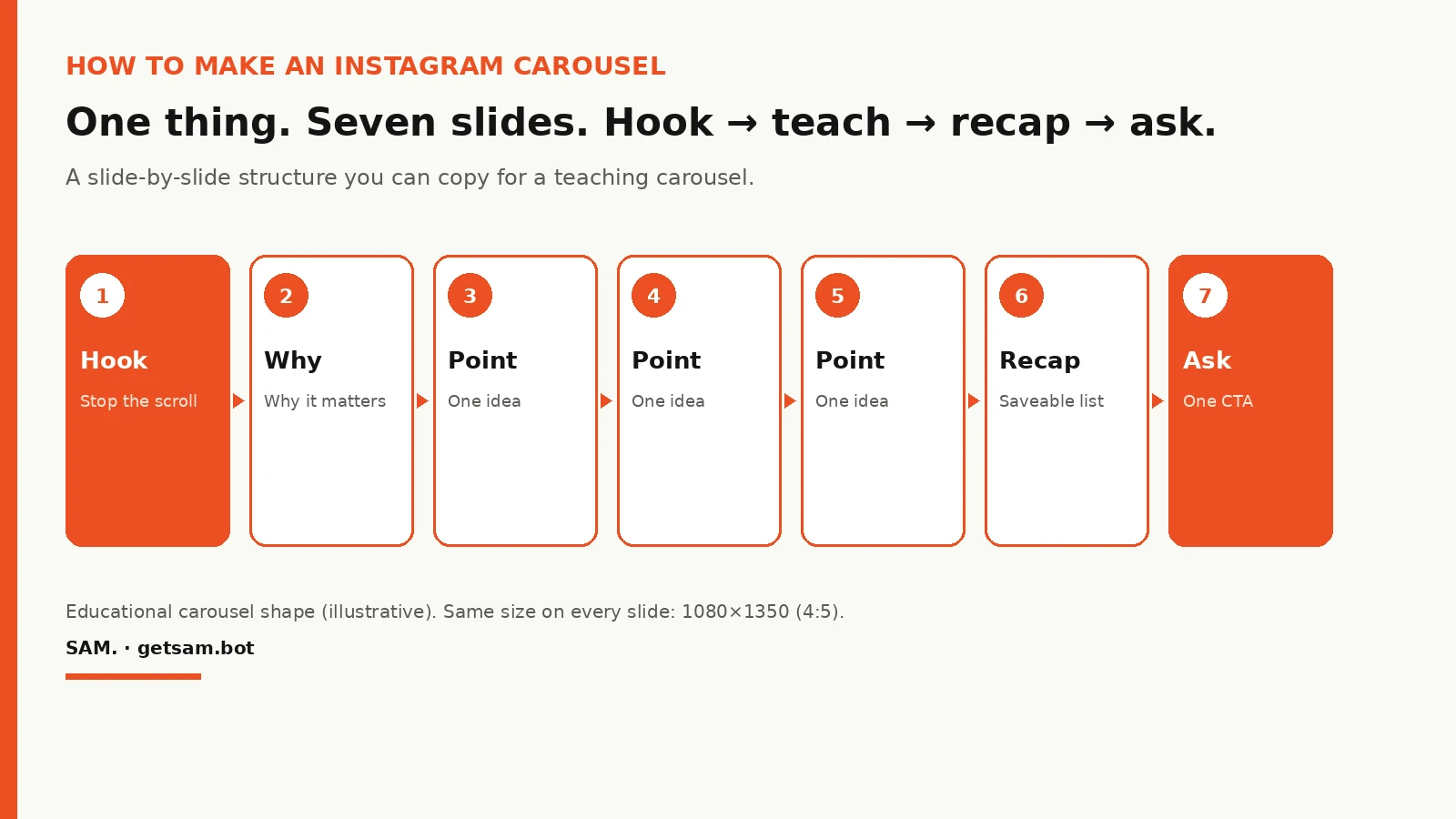
To make an Instagram carousel that teaches one thing, write seven slides with clear jobs: a hook, a why-it-matters slide, three teaching slides (one idea each), a saveable recap, and one ask. Design every slide at the same size (1080×1350, 4:5), put the strongest line on slide 1, and only then open Instagram and upload the set in order. Below is the full structure, plus a made-up 7-slide example you can copy and rewrite for your own topic.
The example is illustrative. It's not a real post, and it doesn't report results from a real account.
Most "how to make an Instagram carousel" guides stop at the app taps: pick Select multiple, upload up to 20 slides, hit Share. That gets a carousel live. It doesn't get people to swipe, save, or trust you. The order of the slides is the part that sells the idea.
// 01What is an Instagram carousel?
An Instagram carousel is one feed post with two or more photos or videos people swipe through sideways. One caption, one cover on your grid (slide 1). The app allows up to 20 slides; schedulers that use Meta's Instagram API stop at 10. For most teaching posts, seven is enough.
// 02What size should every slide be?
Use 1080×1350 pixels (4:5 portrait) for every slide in the set. That fills more feed space than a square, and it works in the app and through most schedulers.
Three rules that stop most cropping mistakes:
- Export every slide at the same size. The first slide sets the crop for the rest when you schedule through the API.
- Keep important text about 100 pixels in from the edges so the profile grid and feed icons don't cover it.
- Number your files
01,02,03so the order survives the upload.
You can mix photos and videos. Keep them at the same aspect ratio so nothing gets cropped.
// 03The 7-slide teaching structure
Use this shape when the goal is to teach one idea well enough that someone saves the post. It matches how educational carousels are usually built: hook, why, teaching points, recap, ask.
| Slide | Its one job | What goes on it |
|---|---|---|
| 1. Hook | Stop the scroll | One bold headline. Numbered promise or tension. No body. |
| 2. Why it matters | Give a reason to keep swiping | One or two short sentences on why this matters now. |
| 3. Teaching point 1 | Deliver one idea | Short header + 2 to 4 tight lines. Under about 30 words. |
| 4. Teaching point 2 | Deliver one idea | Same layout as slide 3. |
| 5. Teaching point 3 | Deliver the best idea | Same layout. Save your strongest point for here or the recap. |
| 6. Recap | Make it saveable | Condensed numbered list of every point. |
| 7. Ask | One action | Save, share, comment, or visit. One ask only. |
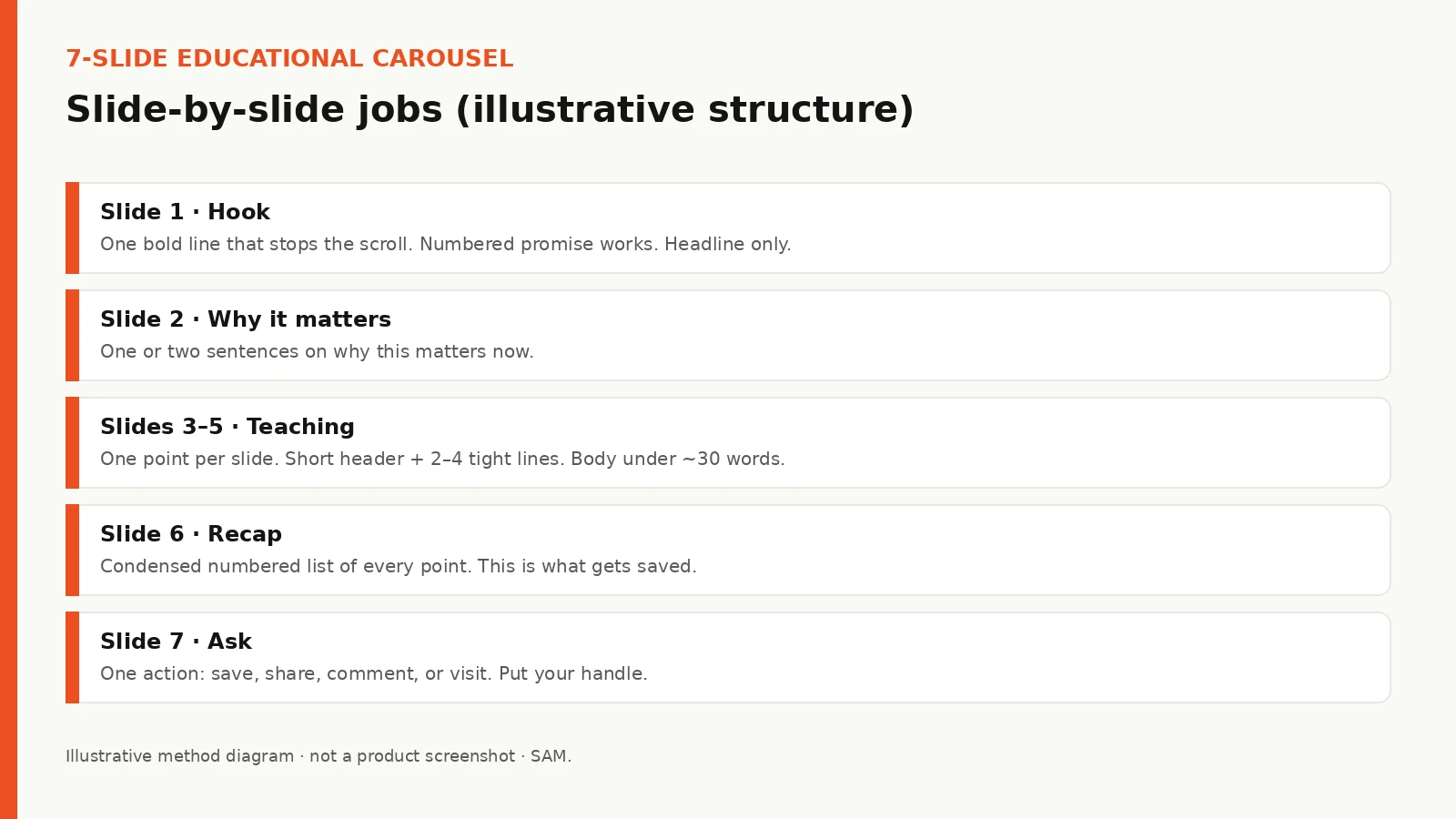
Seven slides is long enough to teach something and short enough that most people finish. You can stretch to eight or ten if you need more teaching points. Past twelve, you're writing a blog post in the feed. Cut it.
// 04Step 1: Pick one thing to teach
Write the one outcome in a single line before you open a design tool. "How to write a carousel hook that earns the first swipe" is one thing. "Everything about Instagram marketing" is not.
If you can't say the topic in under ten words, the carousel will sprawl. Pick the slice your buyer needs next week, not the whole curriculum.
// 05Step 2: Write the text storyboard first
Write every slide as plain text and read it on your phone before you design anything. Fixing words is cheap. Redoing seven designed slides is not.
Rules for the storyboard:
- Slide 1 under about 10 words.
- One idea per teaching slide.
- Body under about 30 words per teaching slide.
- Same voice on every slide. Direct and punchy, no filler.
- Never invent numbers, prices, or results. Use only what you can verify from your own business.
When the text is done, then pick the look: one art direction for the whole set, same fonts, same palette, same grid. Flat colored squares with plain text are a weak carousel. The set should read as one designed object.
// 06Step 3: Design for the swipe
Slide 1 is a thumbnail competing in the feed. Design it like a cover, not a title card. Put a small swipe cue on the cover (an arrow or "swipe") so new followers know there is more.
Interior slides should point forward: slide numbers, a recurring motif, or a visual that continues toward the right edge. The last slide is the payoff plus the ask.
Keep cohesion across the set. Same fonts, same margins, same heading position. Consistency makes swiping fast, and finishing the set is the signal you want.
// 07A worked 7-slide example (illustrative)
This example is made up for a fictional neighborhood coffee shop teaching one idea: how to write a better Instagram carousel hook. It shows the shape. Swap in your topic, your voice, and your own facts.
Topic: How to write a carousel hook that earns the first swipe
Goal: Teach one skill; ask for a save
Audience: Local small businesses posting on Instagram
| Slide | Text on the slide |
|---|---|
| 1. Hook | 5 carousel hooks that stop the scroll |
| 2. Why | Your cover is a thumbnail in a crowded feed. One clear promise beats a logo and a vague title. |
| 3. Point 1 | Lead with a number. "5 mistakes" gives people a reason to swipe for the list. |
| 4. Point 2 | Name the pain in plain words. "Your espresso tastes sour" beats "Brewing tips." |
| 5. Point 3 | Put the payoff on slide 1. Promise the fix, not the setup. |
| 6. Recap | 1) Number it. 2) Name the pain. 3) Promise the payoff. 4) Keep it under 10 words. 5) Add a swipe cue. |
| 7. Ask | Save this for your next carousel. Then rewrite slide 1 before you design anything else. |
Caption (illustrative):
"Most carousels fail on slide 1. Swipe for 5 hook patterns you can steal for your next post, and save this so you have them when you sit down to write. Which hook do you overuse?"
Notice the caption doesn't repeat every slide. It adds context and repeats the ask. Put 3 to 5 specific hashtags at the end if you use them, not a block of thirty.
// 08How to post the carousel in the Instagram app
Once the slides are exported as JPG or PNG files at 1080×1350:
- Open Instagram and tap +, then choose Post.
- Tap the Select multiple icon (stacked squares) in the media picker.
- Tap your slides in order. Instagram numbers them as you tap. You can select up to 20 in the app.
- Check the crop preview so every slide fills the 4:5 frame.
- Tap Next, edit filters per slide if you want, then Next again.
- Write the caption, add alt text for each slide under Advanced settings, and tap Share.
On desktop at instagram.com, use Create, select multiple files, drag to reorder, then share. You can delete a slide after posting through Edit, but you can't add new ones, so check the count before you share.
If you schedule through a tool that uses Meta's API, stay at 10 slides or fewer and export JPEGs under the tool's file limits.
// 09What to put in the caption
Match the caption to slide 1. Add a two- or three-line summary, then one clear ask ("save this" or "share with someone who needs it"). End with a few specific hashtags if you use them.
Don't paste the full slide text into the caption. People who swipe already saw it. People who only read the caption need the promise and the ask, not a wall of duplicate copy.
For how many posts to plan each week, see how often to post on Instagram.
// 10Common mistakes that kill the swipe
A weak first slide. A logo, "Part 1," or a vague title gives nobody a reason to move.
Mixed sizes. One square file in a 4:5 set gets cropped, especially when you schedule.
Too much text. A paragraph on a phone gets skipped. Split it into two slides.
No recap. Without a saveable list, people finish the swipe and have nothing to keep.
Two asks on the last slide. Pick save, share, comment, or visit. One ask.
Invented stats on the slides. If you didn't measure it, don't put it on the card. Made-up numbers train people to distrust the next carousel too.
// 11How SAM fits (when you want help building carousels)
SAM is SAM + 5 AI specialists, an AI marketing team built by the team at SamCart. Going by SAM's own website, it learns your brand and offer from your website, and your customers and sales from the accounts you connect, and it works inside your tools. The five specialists include Social. One example playbook is called Instagram Carousel. The site says nothing goes live without your yes. SAM connects with tools including Meta, Google, Mailchimp and WordPress. This describes the product, not results. The playbooks on the site are examples, and what's available to you is shown when you get access.
Writing a teaching carousel from your own brand and topic is the kind of job that fits those pieces. Your part stays the same: you pick the one thing to teach and you approve the storyboard before anything is designed or posted. For sale-week email copy, see Black Friday email examples. For growing the list those posts feed, see lead magnet ideas. For the ad side, read can AI actually run your Facebook ads, and see what's shipped lately on the changelog.
Want SAM to help build Instagram carousels from your brand?
SAM opens to a limited group first. 6 quick taps, about 60 seconds. Free. No credit card.
Let SAM score my marketing// 12Your one thing this week
Write a 7-slide storyboard for one topic your buyers need next week. Slide 1 as a headline only, three teaching points, a recap, and one ask. Read it on your phone. Only then open the design tool.
// FAQInstagram carousel questions
How many slides should an Instagram carousel have?+
For a teaching post, seven is a strong default. Six to ten works for most topics. The app allows up to 20; most schedulers that use Meta's API stop at 10.
What size is best for Instagram carousel posts?+
1080×1350 (4:5 portrait) for every slide. Keep all slides the same size so nothing gets cropped.
Should I design in Canva or post photos from my camera roll?+
Either works. If you're teaching with text, design the slides first, export them, then upload. Camera-roll carousels work better for photo stories than for teaching lists.
Do I need a different caption for every slide?+
No. One caption for the whole post. Match slide 1, add a short summary, and end with one ask.
Can I mix photos and videos in one carousel?+
Yes. Keep the same aspect ratio across the set.
What's the difference between a teaching carousel and a product showcase?+
A teaching carousel has one idea, a recap, and a save ask. A product showcase shows items or angles. Pick the format that matches the job.