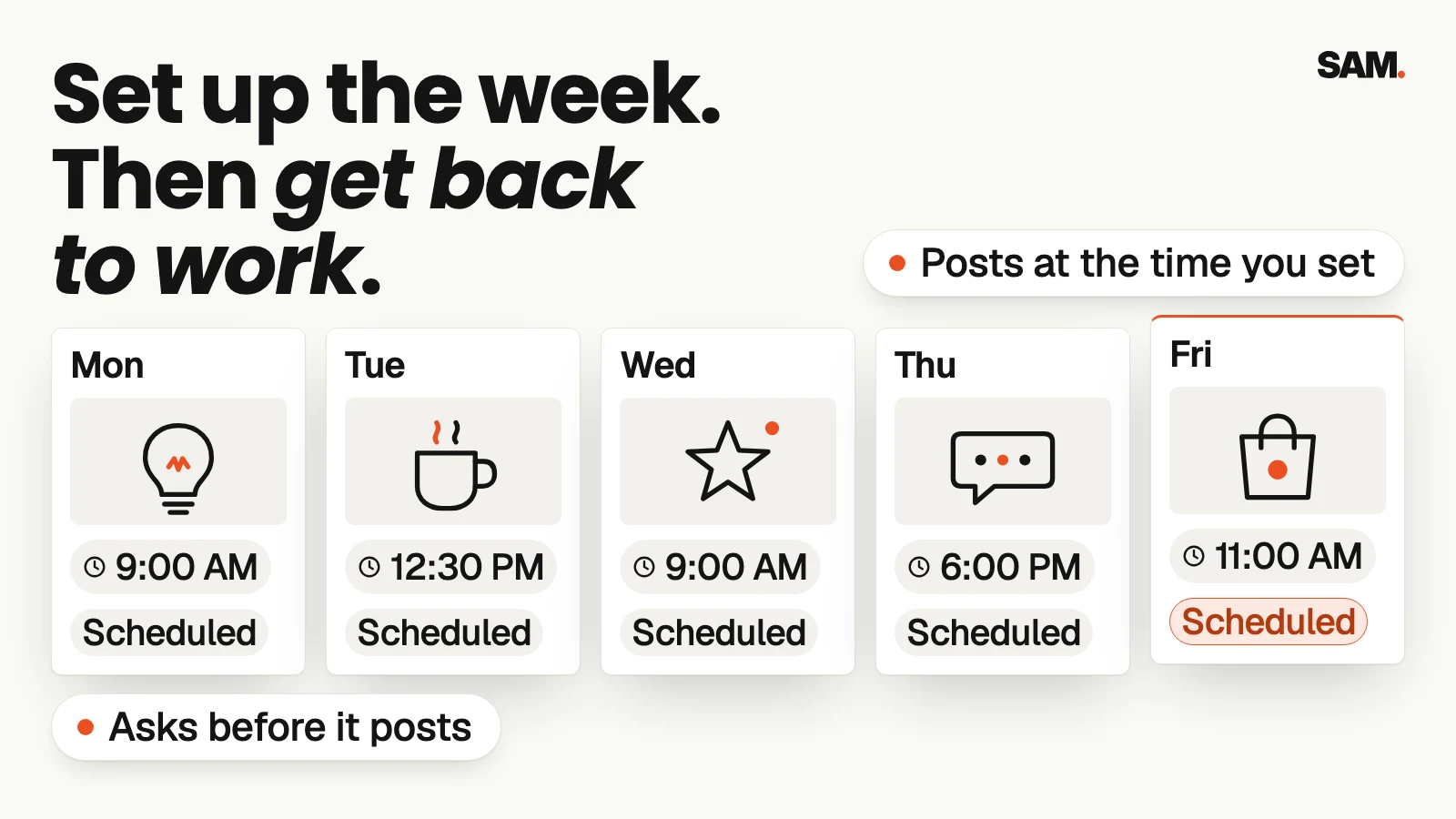
To schedule social media posts, write and finish each post ahead of time, then use the scheduling option in the app (or a scheduling tool) to pick the day and time it goes out. For a small business, the easy version is one hour a week: finish a week of posts, schedule them all in one sitting, and spend the rest of the week replying to people instead of posting.
Scheduling doesn't make your posts better. It makes them happen. The post you meant to put up on Tuesday, before a customer walked in, goes out on Tuesday anyway.
If you haven't planned what to post yet, start with our simple social media content calendar. This post picks up where that one stops: getting the posts out the door on time.
// 01Where to schedule posts for each app
Most of the big apps let you schedule posts for free, right where you already post. A scheduling tool is worth it once you post to three or more places and want one screen for all of them.
| Where you post | Free way to schedule |
|---|---|
| Facebook Page and Instagram | Meta Business Suite (on the web or the app) |
| The clock icon in the post box, before you hit Post | |
| X | The schedule option in the post box on the web |
| Several apps at once | A scheduling tool like Buffer |
Apps change these menus often, so if you can't find the option, search the app's help page for "schedule a post".
// 02Step 1: Finish the post before you schedule it
A scheduled post has to be ready to go without you. Before you schedule it, check that it has all of this:
- The words. The full caption, not a note to yourself like "post about reviews".
- The photo or video. Already picked, cropped and saved.
- The link or next step. Where should someone go or what should they do after reading it?
- The date and time. Written next to the post in your plan.
If any of these is missing, it isn't ready. Fix it now, while you're sitting down to do it, not five minutes before it's due.
// 03Step 2: Pick times your customers are actually free
There's no single best time to post that works for every business. A coffee shop's customers are scrolling at 7 AM. A bookkeeper's clients might be on LinkedIn at lunch.
Start with a simple guess: when are your customers waiting in line, on a break or winding down for the night? Schedule posts for those windows. After about four weeks, open the insights in each app and look at which posts got the most comments, saves and messages. Move your times toward what worked.
Keep the same days and times each week. People start to expect you, and you stop having to decide.
// 04Step 3: Schedule the whole week in one sitting
Pick one hour on the same day each week. Sunday evening or Friday afternoon both work. Then:
- Open your plan for the coming week.
- Schedule anything tied to a date first, like a sale, an event or a holiday.
- Schedule the rest of the week's posts.
- Open the scheduled list in each app and read every post one more time.
That last step catches the typos, the wrong photo and the post set for 7 PM instead of 7 AM.
A heads-up for this week: clocks in most of the US fell back one hour on Sunday, Nov 1. If you scheduled posts before the change, open your scheduled list and check the times look right. While you're there, check that the time zone in each tool matches where your customers are.
// 05Step 4: Know what not to schedule
Scheduling is great for posts that don't depend on today's news. Some things are better posted live:
- Replies to comments and messages. People can tell a canned reply. Answer them yourself, and soon.
- Anything about a fast-changing situation. If the weather closes your shop or a delivery is late, post about it live.
- Posts during bad news. When something big is happening in your town or the world, pause your scheduled posts and look at them again. A cheerful sale post can land badly on the wrong day.
Most apps and tools let you pause or delete a scheduled post. Know where that button is before you need it.
// 06Step 5: Show up after the post goes out
The hour after a post goes out is when people comment and message. Scheduling frees up time to be there for it. Set a reminder for a few minutes after your main posts each week and answer what comes in.
A sale from social media often starts this way: a question in the comments, then a message, then a purchase.
// 07Common scheduling mistakes
- Scheduling and never checking. Read the scheduled list once a week. Things go out wrong when nobody looks.
- The same post everywhere, word for word. A post written for Instagram can read oddly on LinkedIn. Change the first line for each place.
- Scheduling too far out. A month of posts sounds great until your prices, hours or stock change. A week or two ahead is easier to keep accurate.
- Forgetting the time zone. Your tool may be set to a different time zone than your customers.
- Posting more because it's easy. Scheduling makes it tempting to post five times a day. Pick a number you can keep. Here's more on how often to post on Instagram.
// 08Where SAM fits (built by the founder of SamCart)
SAM is an AI marketing team for small businesses: SAM + 5 AI specialists (Ads, Content, Designer, Promotions and Social). It learns your brand and offer from your website, and your customers and sales from the accounts you connect.
For this job, SAM can write your posts in your brand voice and make the images and short videos for them. Ask it to post at a set time and it schedules the post itself, or it can drop posts into your Buffer, Blotato or Postiz queue. You can preview a post before SAM publishes it, and SAM asks first before it publishes to Instagram, X or TikTok. If you want the same job done every week, describe it in chat and SAM sets it up as a recurring job you can pause any time.
SAM was built by the team behind SamCart and is opening to a limited group right now. If you want to see where your marketing stands first, let SAM score your marketing. It's free.
SAM isn't open to you yet. Let it score your marketing.
Let SAM score my marketing// FAQFAQ
How do I schedule social media posts for free?
Use the scheduling option built into each app. Meta Business Suite schedules Facebook and Instagram posts, and LinkedIn and X both have a schedule option in the post box.
What's the best time to schedule social media posts?
When your own customers are free to scroll, like before work, at lunch or in the evening. After about four weeks, check each app's insights and move toward the times that got the most comments and messages.
How far ahead should I schedule social media posts?
About one to two weeks. That's far enough to cover a busy week and close enough that prices, hours and stock are still right.
Should I schedule every post?
No. Schedule planned posts, but answer comments and messages yourself, and post live about anything that's changing fast.
Can I change a post after I schedule it?
In most apps and tools, yes. Open the list of scheduled posts, then edit, move or delete the post before it goes out.
// 09Your one thing this week
Pick one hour this week and put it on your calendar as "Schedule next week's posts". In that hour, schedule just three posts for next week. Then open the scheduled list and read them once more before you close the app.
Want a quick read on the rest of your marketing? Let SAM score your marketing.